SMM Panel Order Status Explained: What Every Status Means
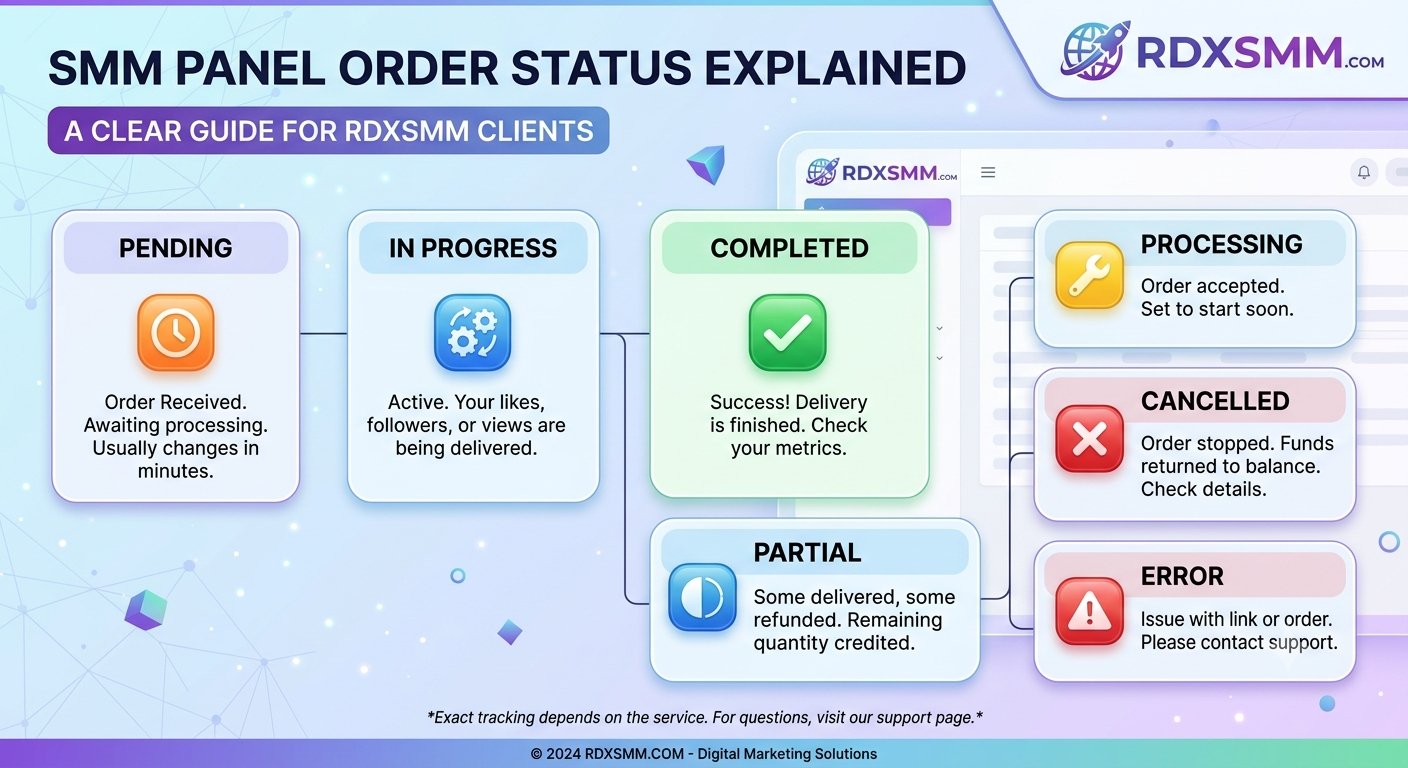
SMM Panel Order Status Explained: What Every Status Means
If you have ever placed an order through an SMM panel and noticed words such as Pending, Processing, In Progress, Completed, Partial, Cancelled, or Refunded, you may have wondered what they actually mean.
Understanding SMM panel order statuses is important because the status tells you what stage your order has reached and whether you need to wait, check something, or contact support.
In this complete guide, we'll explain SMM panel order status meanings, how to track an order, why an order can remain pending, what a partial order means, and what you should do when an order appears to be stuck.
What Is an SMM Panel Order Status?
An SMM panel order status is a label that shows the current stage of an order after you submit it.
Depending on the panel and connected service provider, an order may move through several stages before it is finished.
A typical order lifecycle can look like:
Order Placed → Pending → Processing/In Progress → Completed
However, an order can also end as Partial, Cancelled, Failed, or Refunded, depending on the service and circumstances.
The exact terminology can differ between panels and providers, so users should always check the service description and the panel's own policies.
SMM Panel Order Status Meaning
Here is a simple overview of the most common statuses:
| Status | General Meaning | What You Should Do |
|---|---|---|
| Pending | Order is waiting to start | Wait within the stated start time |
| Processing | Order is being prepared or handled | Continue monitoring |
| In Progress | Delivery has started | Track progress |
| Completed | Order has been marked finished | Check final result |
| Partial | Only part of the order was delivered | Check remaining quantity/balance |
| Cancelled | Order has stopped | Check the reason and balance |
| Failed/Error | System or provider couldn't process it | Review details/contact support |
| Refunded | Money has been returned according to panel rules | Check your balance |
These definitions are common across many SMM-panel systems, but individual providers can use slightly different terminology.
1. What Does Pending Mean in an SMM Panel?
Pending usually means that your order has been received but delivery has not started yet.
For example, suppose you order 1,000 units of a particular social-media service. After submitting the order, the dashboard may immediately show:
Status: Pending
This doesn't necessarily mean something is wrong.
The order may simply be waiting in a queue or waiting for the connected provider to accept and begin processing it.
Why can an order stay Pending?
Possible reasons include:
- Provider queue
- Service start time
- High demand
- Temporary capacity limitations
- System synchronization
- Service-specific processing requirements
The most important thing is to check the start time listed for the service before assuming that an order has failed.
What should you do?
If your order is still within the advertised start window, generally the best approach is to wait.
Avoid immediately placing another order for the same target because this can create duplicate or overlapping orders.
2. What Does Processing Mean?
Processing generally indicates that the order is being handled by the panel or provider.
Depending on the system, Processing may mean that the order has been accepted and is being prepared for delivery.
Some panels use Processing and In Progress almost interchangeably, while others distinguish between them.
That's why the service description and panel documentation should be your primary reference.
During this stage, avoid unnecessarily changing the target information if the service requires the target to remain accessible.
3. What Does In Progress Mean?
In Progress generally means that delivery has started.
For example, if you ordered a service with a quantity of 5,000, you may see the Remains number gradually decrease as delivery progresses.
A simplified example:
Ordered: 5,000
Delivered: 2,000
Remaining: 3,000
Status: In Progress
The exact display can vary between panels.
When an order is In Progress, you normally don't need to create another order simply because the full quantity has not arrived yet.
Instead, check:
- Current status
- Start count
- Remaining quantity
- Service speed
- Advertised delivery time
4. What Does Completed Mean?
Completed normally means the panel or upstream provider has marked the order as finished.
For example:
Ordered: 1,000
Delivered: 1,000
Status: Completed
However, Completed does not necessarily mean that a social-media metric will remain permanently unchanged.
Numbers on social platforms can change for many reasons after an order has finished. Also, whether a service has a refill guarantee depends on the specific service terms.
So after an order becomes Completed, check the service's:
- Refill policy
- Refill duration
- Retention information
- Starting count
- Final count
A completed status is a fulfillment status; it isn't automatically a guarantee that the result will never change.
5. What Does Partial Mean in an SMM Panel?
Partial means that the order was not completely fulfilled.
For example, imagine you ordered:
Quantity: 10,000
But the service only delivered:
Delivered: 8,000
The remaining 2,000 could not be delivered, so the order may be marked:
Partial
Many panels adjust the customer's balance for the undelivered portion, but the exact refund or balance-adjustment policy depends on the panel.
Why can an order become Partial?
Possible reasons include:
- Provider capacity
- Service limitations
- Target becoming unavailable
- Platform restrictions
- Delivery stopping before the requested quantity
- Other provider-side issues
If you receive a Partial status, check the Remains field and your account balance before contacting support.
6. What Does Cancelled Mean?
Cancelled generally means the order has been stopped and will not continue.
Possible causes can include:
- Invalid target link
- Incorrect order information
- Service unavailable
- Provider rejection
- Target becoming inaccessible
- Duplicate-order restrictions
- Other service-specific limitations
In many systems, cancelled orders are refunded to the panel balance, but you should always check the individual panel's refund policy.
If your order is cancelled, don't immediately submit the same order again.
First check:
- The target URL
- Service requirements
- Minimum and maximum quantity
- Whether the target is publicly accessible
- The service description
7. What Does Refunded Mean?
Refunded generally indicates that money associated with an order has been returned to your panel balance according to the panel's rules.
A refund can occur when an order is cancelled, fails, or cannot deliver the full requested quantity.
For example:
Order value: ₹100
Delivered portion: ₹70
Undelivered portion: ₹30
Depending on the panel's policy, the undelivered amount may be returned to your balance.
Always check your order history and balance rather than assuming that every panel handles refunds in exactly the same way.
8. What Does Failed or Error Mean?
Some panels also use statuses such as:
Failed
Error
Processing Error
These generally indicate that the system or provider could not process the order normally.
Possible causes include:
- Invalid target
- Provider API problem
- Service temporarily unavailable
- Incorrect parameters
- Technical issue
- Provider rejection
If the order shows an error, check whether your balance was automatically returned.
If it wasn't, contact support and provide the Order ID.
How to Track an SMM Panel Order
Most SMM panels provide an Order History or My Orders section.
A typical process looks like:
Step 1: Log in
Sign in to your SMM panel account.
Step 2: Open Order History
Find the section containing your previous and active orders.
Step 3: Find your Order ID
Every order should have a unique identification number.
Step 4: Check the Status
Look for:
- Pending
- Processing
- In Progress
- Completed
- Partial
- Cancelled
- Refunded
Step 5: Check Remaining Quantity
The Remains field can help you understand how much of the order is still outstanding.
Step 6: Check Start Count
Some panels show the starting count recorded when the order was submitted.
Step 7: Check Service Details
Review the original service description, start time, speed, minimum/maximum quantity, and refill information.
Tracking these details is more useful than simply looking at the visible number on a social-media profile.
Why Is My SMM Panel Order Still Pending?
This is one of the most common questions asked by new SMM panel users.
A Pending order isn't automatically a failed order.
It may be waiting for:
- Provider acceptance
- Queue processing
- Service availability
- Scheduled delivery
- System synchronization
The first thing you should do is compare the current waiting time with the advertised start time for the service.
If the stated start window has not passed, waiting may be appropriate.
If the order remains Pending significantly beyond the stated window, then you can:
- Check the target link.
- Check the service description.
- Make sure you didn't submit duplicate orders.
- Check the order ID.
- Contact panel support if necessary.
Should You Place Another Order When One Is Pending?
Usually, don't immediately place another order for the same target.
For example, if you order 1,000 units and the first order is still Pending, placing another 1,000-unit order can potentially create overlapping delivery.
Instead, wait for the first order to progress or contact support if it exceeds the advertised processing window.
What Is Start Count?
Start Count is the number recorded by the system when an order begins or is registered, depending on the panel's implementation.
For example:
Start Count: 10,000
Order Quantity: 1,000
A completed order might therefore be expected to show approximately:
Final Count: 11,000
The actual displayed number can vary because social-media platform metrics can change independently.
What Are Remains?
Remains generally refers to the quantity that has not yet been delivered.
Example:
Ordered: 5,000
Delivered: 3,500
Remains: 1,500
As delivery progresses, the Remains number may decrease.
Once the order is fully delivered, many systems show:
Remains: 0
The exact dashboard terminology can vary between SMM panels.
What Should You Do If an Order Is Stuck?
Before contacting support, collect the basic information.
You should have:
- Order ID
- Service ID
- Service name
- Target link
- Ordered quantity
- Current status
- Order time
- Current remains
- Any relevant error message
A support request containing the correct Order ID is much easier to investigate than a message saying:
"My order isn't working."
For RdxSMM.com users, keeping the Order ID available when contacting support can make order-related troubleshooting much faster.
SMM Panel Order Status: Quick Reference
Here's a simple way to remember the major statuses:
🟡 Pending
Waiting to start.
🔵 Processing
Being prepared or handled.
🔄 In Progress
Delivery has started.
🟢 Completed
Order marked as finished.
🟠 Partial
Only part was delivered.
🔴 Cancelled
Order stopped and won't continue.
💰 Refunded
Applicable amount returned according to the panel's policy.
How RdxSMM.com Can Help With Order Management
If you're looking for an SMM panel where you can manage social media marketing orders through an online dashboard, RdxSMM.com provides access to social-media marketing services and an order-management interface.
Before placing an order, users should always read the individual service description carefully.
Pay particular attention to:
- Minimum order
- Maximum order
- Starting time
- Average delivery speed
- Refill information
- Service restrictions
- Cancellation/refund conditions
Choosing a service based only on price isn't always the best approach. A service with clearer specifications and suitable delivery characteristics may be more appropriate for your particular campaign.
Frequently Asked Questions
What does Pending mean in an SMM panel?
Pending generally means the order has been received but delivery has not started yet. It may be waiting in a provider or system queue.
What does In Progress mean?
In Progress generally means that delivery has started and the order is actively being processed.
What does Completed mean?
Completed generally means the panel or provider has marked the requested order as finished.
What does Partial mean?
Partial means that only part of the requested quantity was delivered. Any balance adjustment depends on the panel's policy.
What does Cancelled mean?
Cancelled means the order has been stopped and will not continue. The reason and refund treatment depend on the panel and service.
Why is my SMM order Pending?
An order can remain Pending because of provider queues, service start times, temporary capacity, or other processing conditions. Check the service's advertised start time before contacting support.
Should I place another order if my first order is Pending?
It is generally better to wait rather than immediately creating a duplicate order for the same target.
What is Remains in an SMM panel?
Remains usually indicates how much of the ordered quantity has not yet been delivered.
Does Completed mean the result will never drop?
No. Completed normally means the order has been marked finished. It doesn't automatically guarantee permanent retention or a refill unless the service specifically provides those terms.
Final Thoughts
Understanding SMM panel order statuses makes it much easier to manage your orders and avoid unnecessary confusion.
Remember the basic flow:
Pending → Processing/In Progress → Completed
And if something goes differently:
Partial → Partially fulfilled
Cancelled → Order stopped
Refunded → Applicable funds returned
Before ordering, always read the service description and understand its delivery time, limits, refill conditions, and other requirements.
If you're looking for an SMM panel to manage social media marketing orders, you can explore the available services at RdxSMM.com.
RdxSMM.com — manage your social media marketing orders from one place.